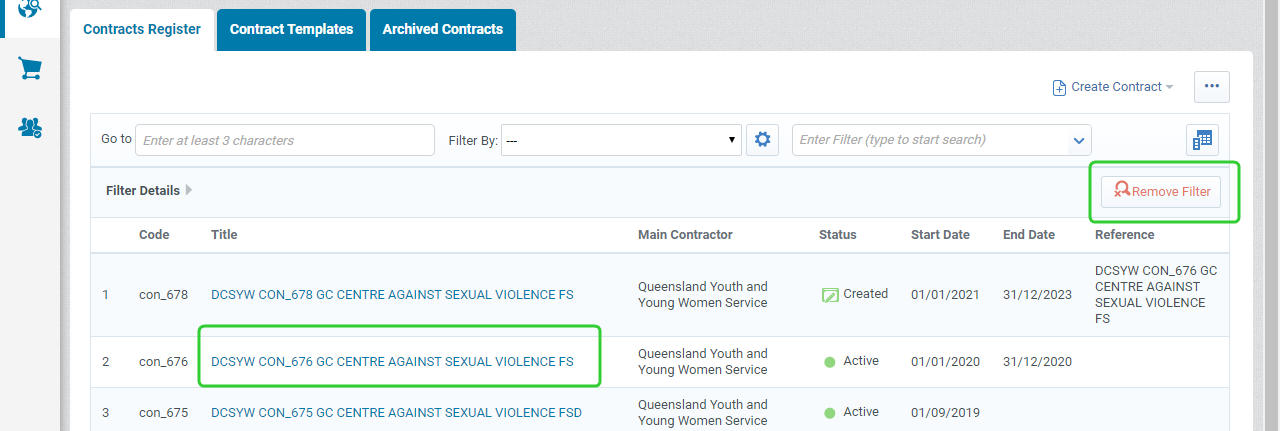
Search for contracts from the Contracts Register
All contracts available to a user are searchable from within P2i Main Dashboard's Contracts Register.
These are some methods to help locate the contract when there are multiple pages of contracts:
-
From P2i Main Dashboard's Quick Links area, click Contracts Register.
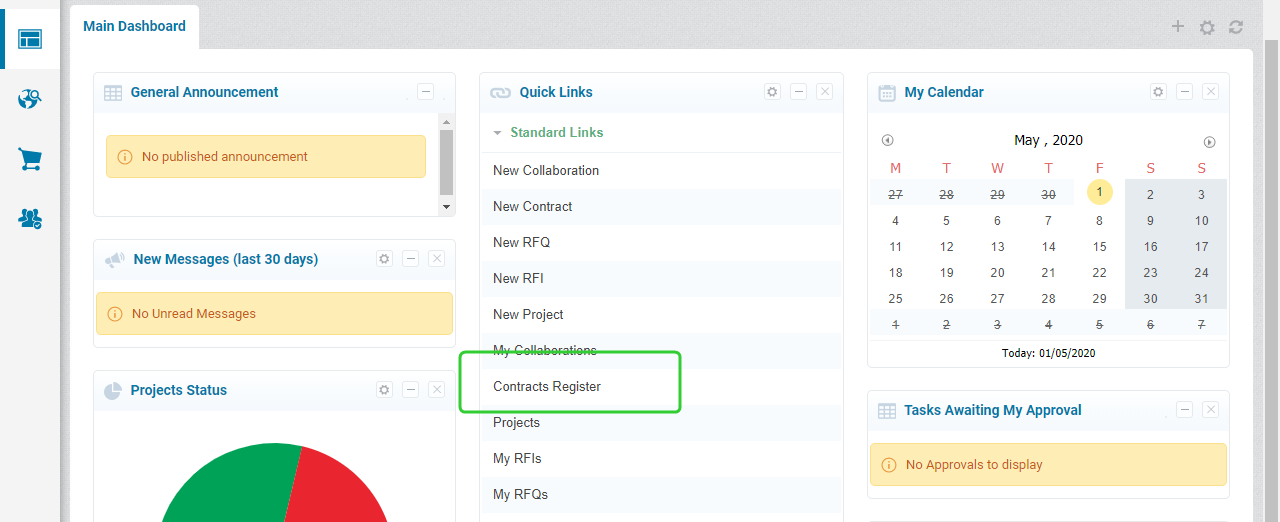
Search using the contract code or contract title
-
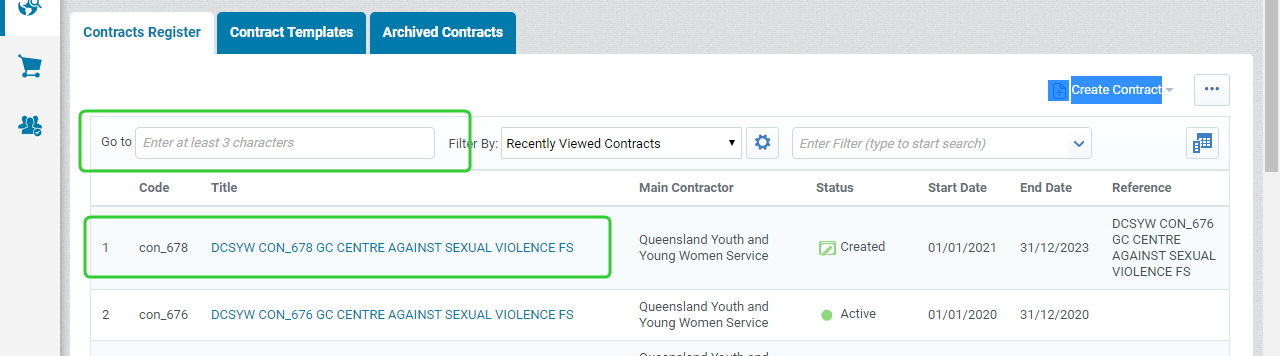
Enter the contract code in the Go to field.
Note The contract code will appear highlighted in the search result.
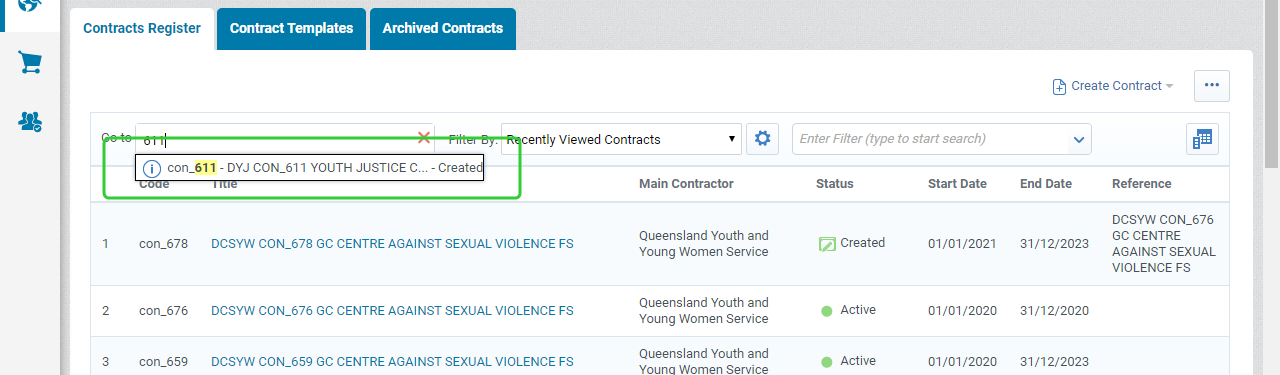
-
Click the search result to open the contract.
Tip Hovering your mouse over a search result will highlight your choice.
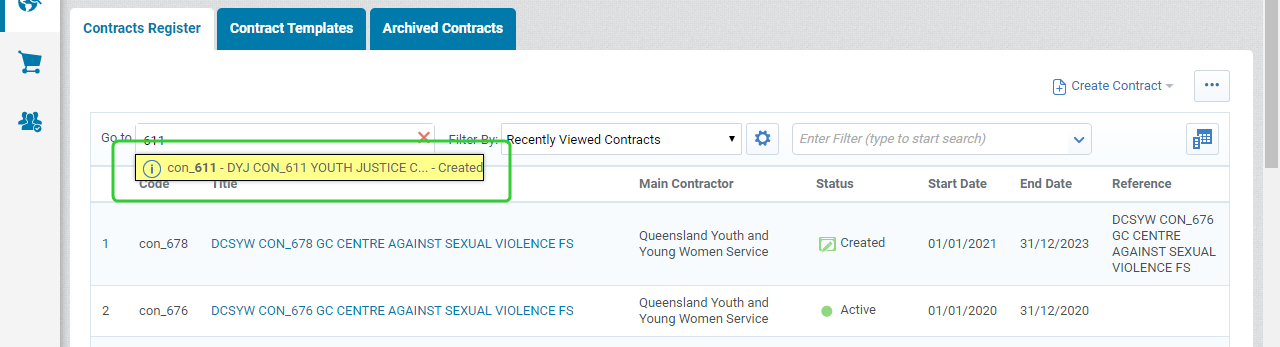
-
Or, enter the at least 3 characters of the Contract Title in the Go to field.
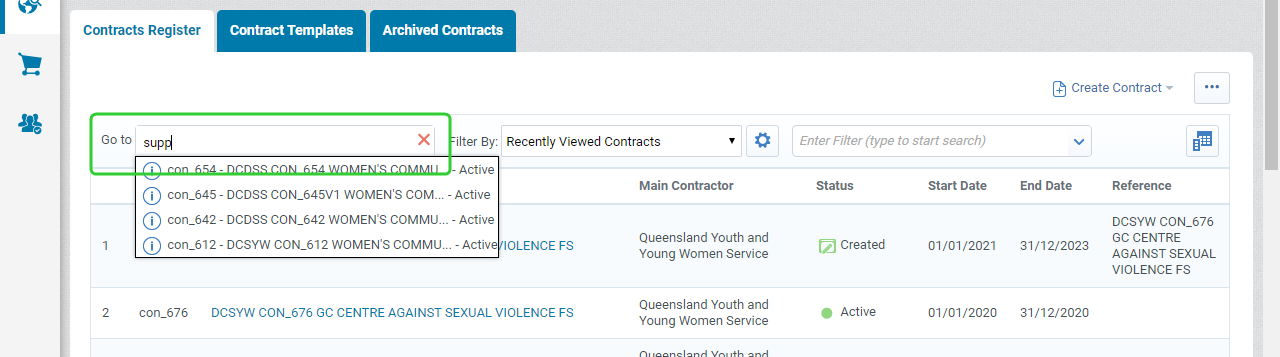
Tip Hover the mouse over the
 icon to reveal the full text of the contract code, contract title and status.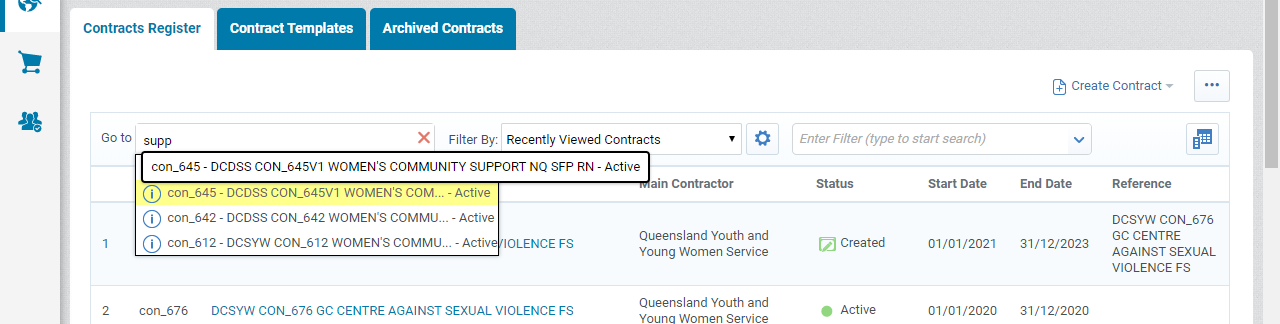
-
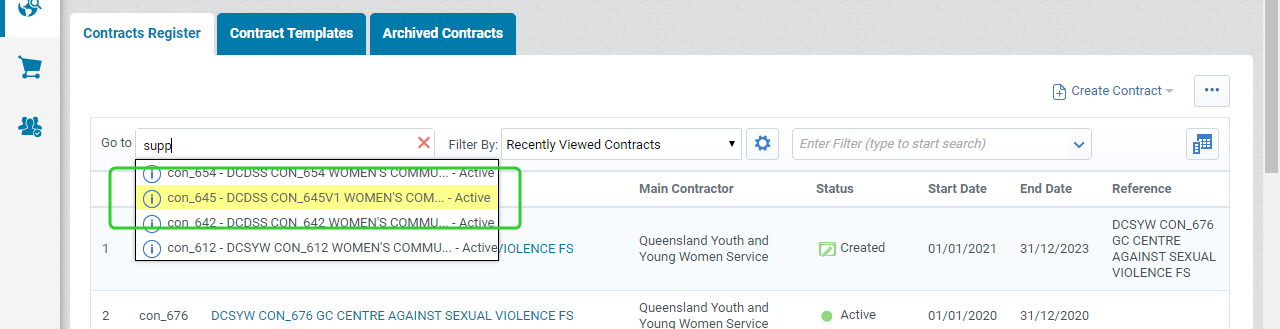
Click the contract item you want to open.
Tip Hovering your mouse over a search result will highlight your choice.
Change the default filters
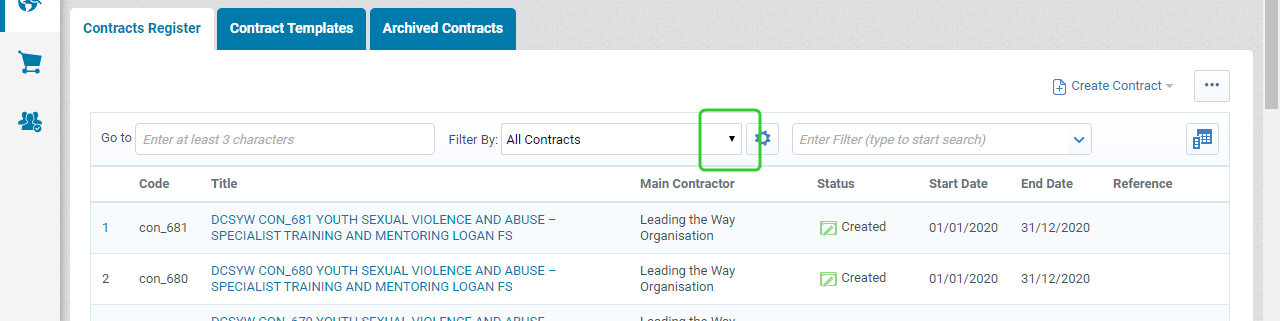
Contracts may be located quickly by using the default filters. There are seven default project filters. The All Contracts filter will be used to display the list of contracts. A useful filter to access is Recently Viewed Contracts.
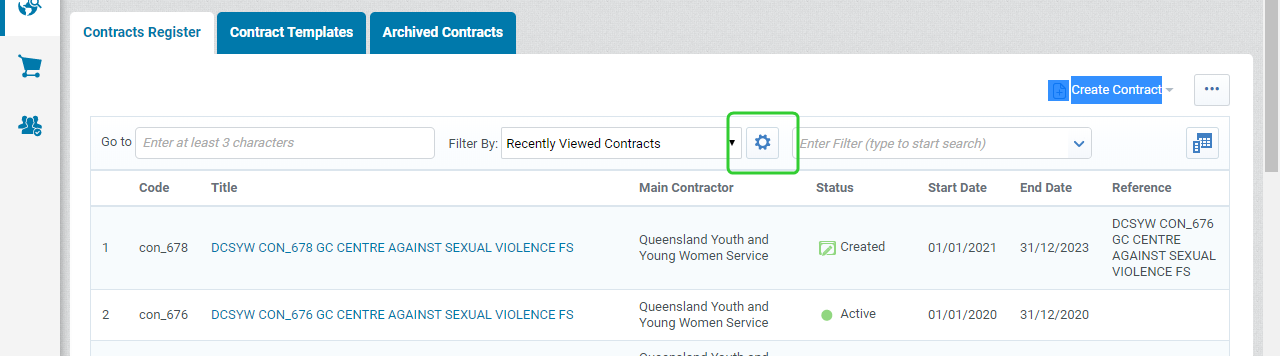
Tip Configure the default filters to change the way the list displays.
-
Click the Filter By dropdown to display the list of filters.
-
Select Recently Viewed Contracts from the list.
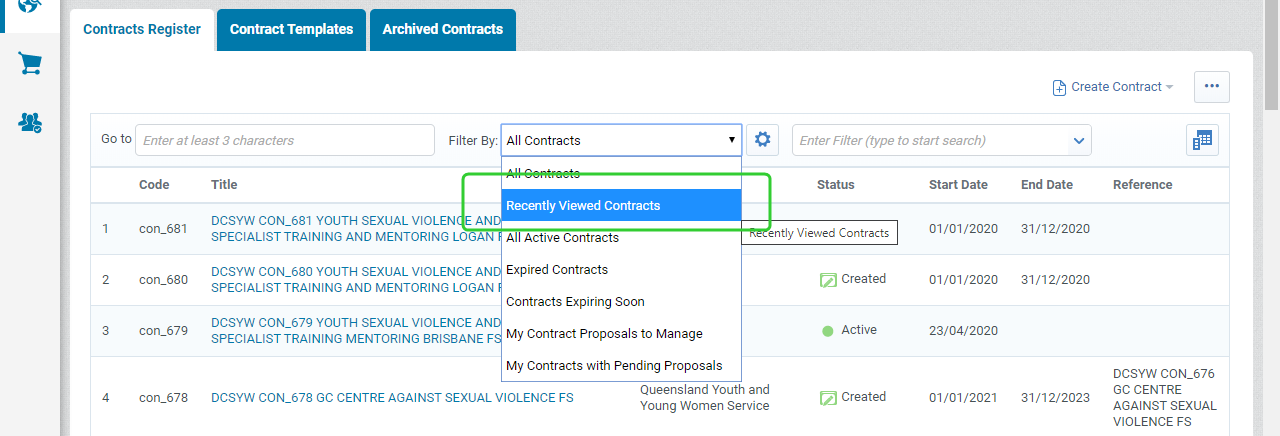
Note P2i is making limited use of the contract proposals functionality. The proposals-related filters may provide no results.
-
Use the Go to field to search for a contract or open a Recently Viewed Contracts.
-
Click the Cog icon to configure the default filter.
-
Select Recently Viewed Contracts and change the Default Filter option to Yes.

-
Click Save.
-
Click the Cog icon to close the configuration pane for the Default Filter.
Note The Recently Viewed Contracts filter will stay as your default as indicated by the (D).
Search using the custom filters
Custom Filters allow searching on other criteria (e.g. Main Contractor or Status).
To use the custom filters:
-
Click the custom filter dropdown list.
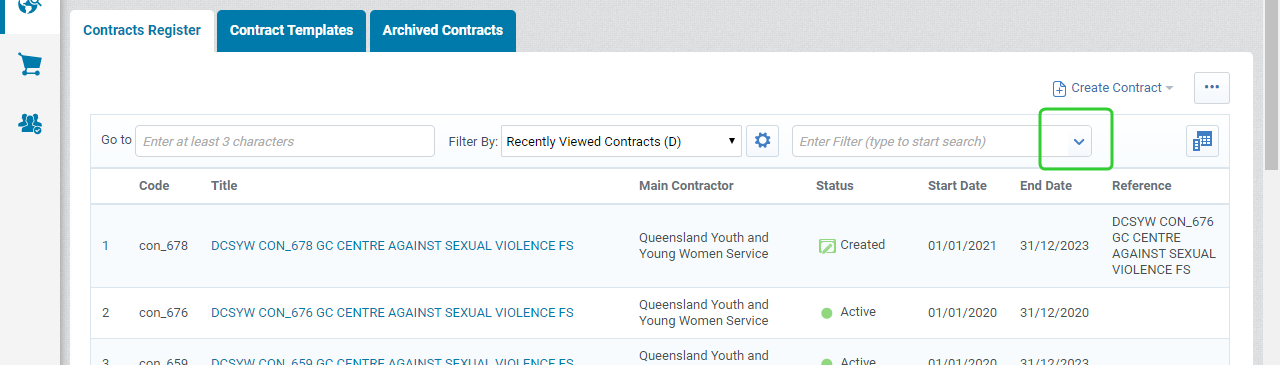
Tip You can also enter at least 3 characters of the filter.
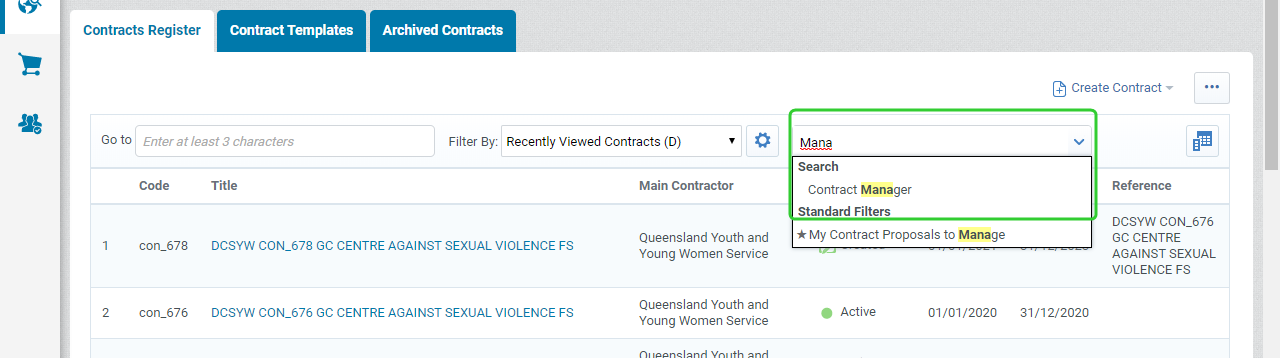
-
Select a filter option from the available list.
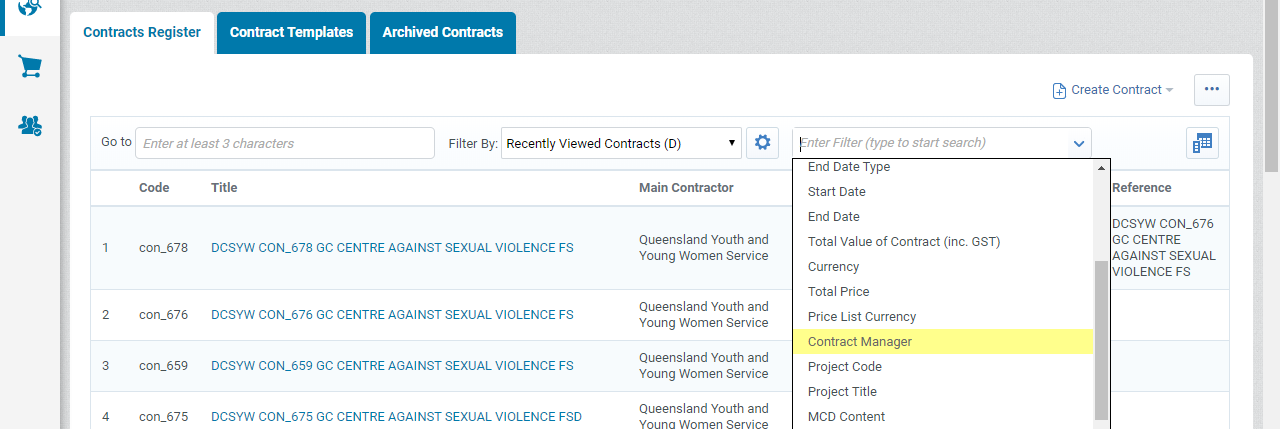
-
Enter the search term and click Search.

Tip The search parameter will default to Contains. You can also select Begins with or Equal to.
-
Click the contract title to open the contract or click Remove Filter to return to the unfiltered list.